Lesson 2 of 8 · 10 min
Designing least-privilege roles
Written by Melek Mehrez, founder of FreeMaint · Last reviewed November 16, 2026
Lesson objective
By the end of this lesson, you can build a matrix of job profiles and permissions, create the role that comes out of it in FreeMaint, and set which records each role can see.
In a CMMS, user roles and permissions decide what each person can see and do. Set them too wide and a technician deletes a job's history by mistake, or a requester approves their own request. Set them too narrow and people borrow the administrator's login to get the work done, which is worse.
The rule that avoids both is least privilege: each person gets the permissions their job needs, and no more. NIST SP 800-53 lists it as control AC-6, and ISO/IEC 27001 counts access rights and privileged access rights among its controls. This lesson turns the principle into a matrix, then into roles that you create, narrow and test.
Think in permissions, not job titles
In FreeMaint, a role is a named list of permissions, plus a setting that says which records it can see. The product never asks whether someone is a technician: it asks whether they hold the permission the action needs. A role's name grants nothing: a role called Technician gives exactly the boxes ticked in it, and unticking one of them changes what every technician can do.
Each permission is an action on a domain: read, create, update, delete, approve or export, for work orders, assets, inventory and the rest. A person can hold several roles, and their permissions add up, together with any permission added to them on their user page. Keep those additions for rare exceptions: nobody sees them from the list of roles.
Build the matrix before the roles
Start from jobs, not from people. Put the profiles of the site in columns and the permissions in rows, grouped by family as in the role editor, then mark each cell Yes or No. Ten people in four jobs need four roles, not ten.
| Profile | Needs to | Should not | Starts from |
|---|---|---|---|
| Requester | Report problems and follow their requests | Change work orders or see costs | Requester |
| Technician | Update their work orders, log time and parts, use stock | Delete, approve, close or cancel | Technician |
| Planner | Create, schedule and assign work, manage preventive plans | Manage users, roles or the company | Maintenance Planner template |
| Storekeeper | Adjust stock, receive deliveries, flag what to reorder | Approve purchases | Warehouse Keeper template |
| Buyer | Create purchase orders from approved requisitions | Approve their own purchases | Buyer template |
| Administrator | Manage users, roles, billing and security | Be shared, or given to whoever asks | Admin |
Under the permissions, add each profile's data visibility, covered below; a second sheet lists each person with their roles. The template of this lesson is that matrix, ready to fill in.
Decide sensitive permissions one by one
Most permissions follow from the job. A few deserve a deliberate decision for each profile, because they change records others rely on, move money, or open the door to everything else.
| Family | Why it matters | Usually held by |
|---|---|---|
| Moving work orders forward or back: Schedule, Close, Cancel, “Complete a work order that was never started” | Changes the record and every indicator drawn from it | Planners, supervisors, the maintenance manager |
| Approving work orders, requests, purchase orders and requisitions | Whoever approves should not be the person who asked | The managers named in the approval policy |
| Delete | Removes history that others rely on | Few people, if any |
| Export | Data leaves the workspace in a file | People who report or audit |
| Costs and prices: “View costs Work Orders”, “View prices Inventory” | Shows spending, including what people cost | Managers and finance; buyers for prices |
| Users, roles and company administration | Whoever holds them can widen their own access | The client's administrator only |
FreeMaint guards the most dangerous ones: Select All in a permission group never ticks a permission marked irreversible, such as resetting the company's data, so granting one takes its own click. And saving a role with no permission brings a warning that its members would see empty screens.
Roles and templates in FreeMaint
Organization › Roles lists the roles of the workspace. Six are created at signup: Admin, Manager, Supervisor, Technician, Requester and Viewer. Admin is marked System: its permissions are fixed and it cannot be deleted; the five others are marked Custom, like the roles you create, and can be changed.
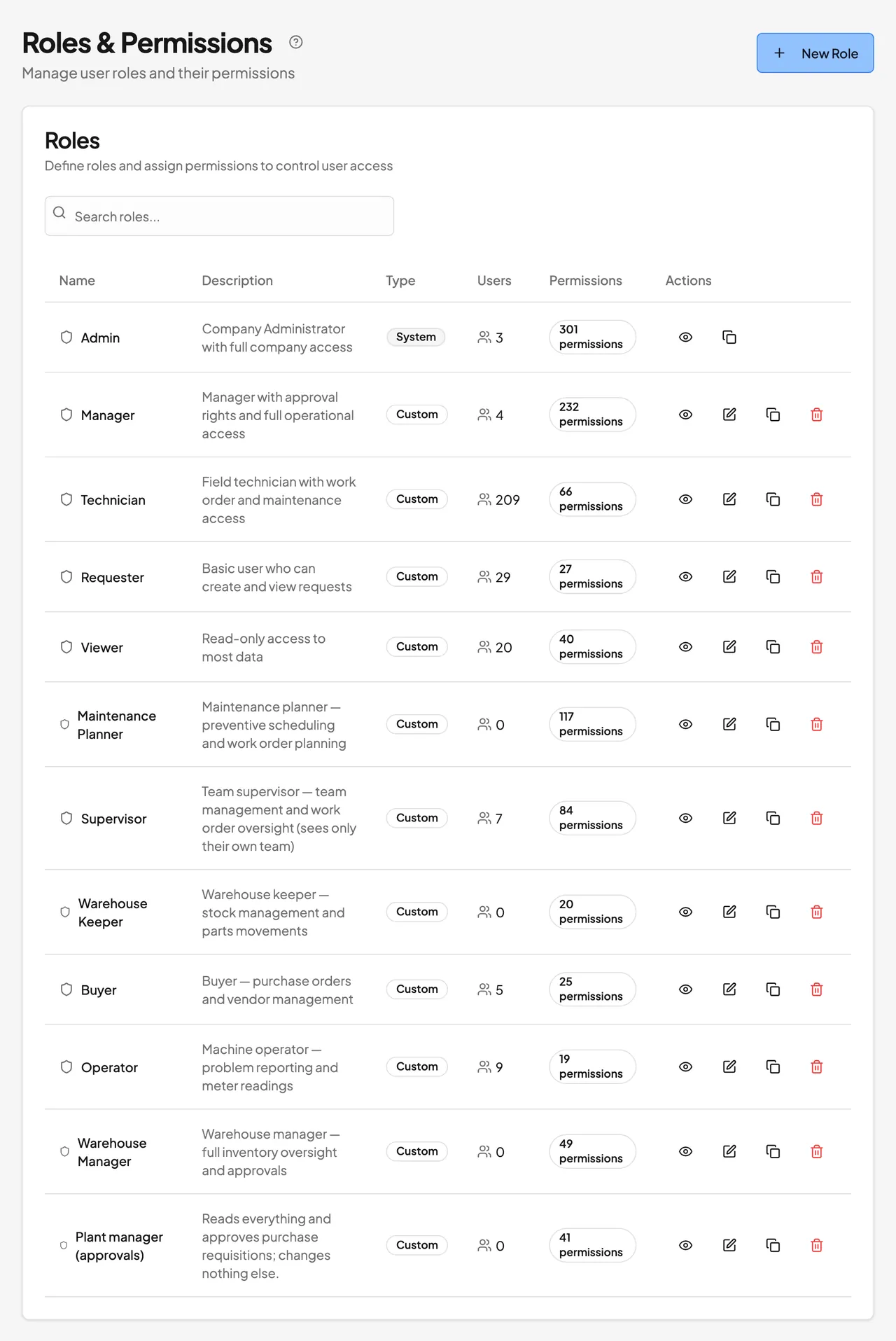
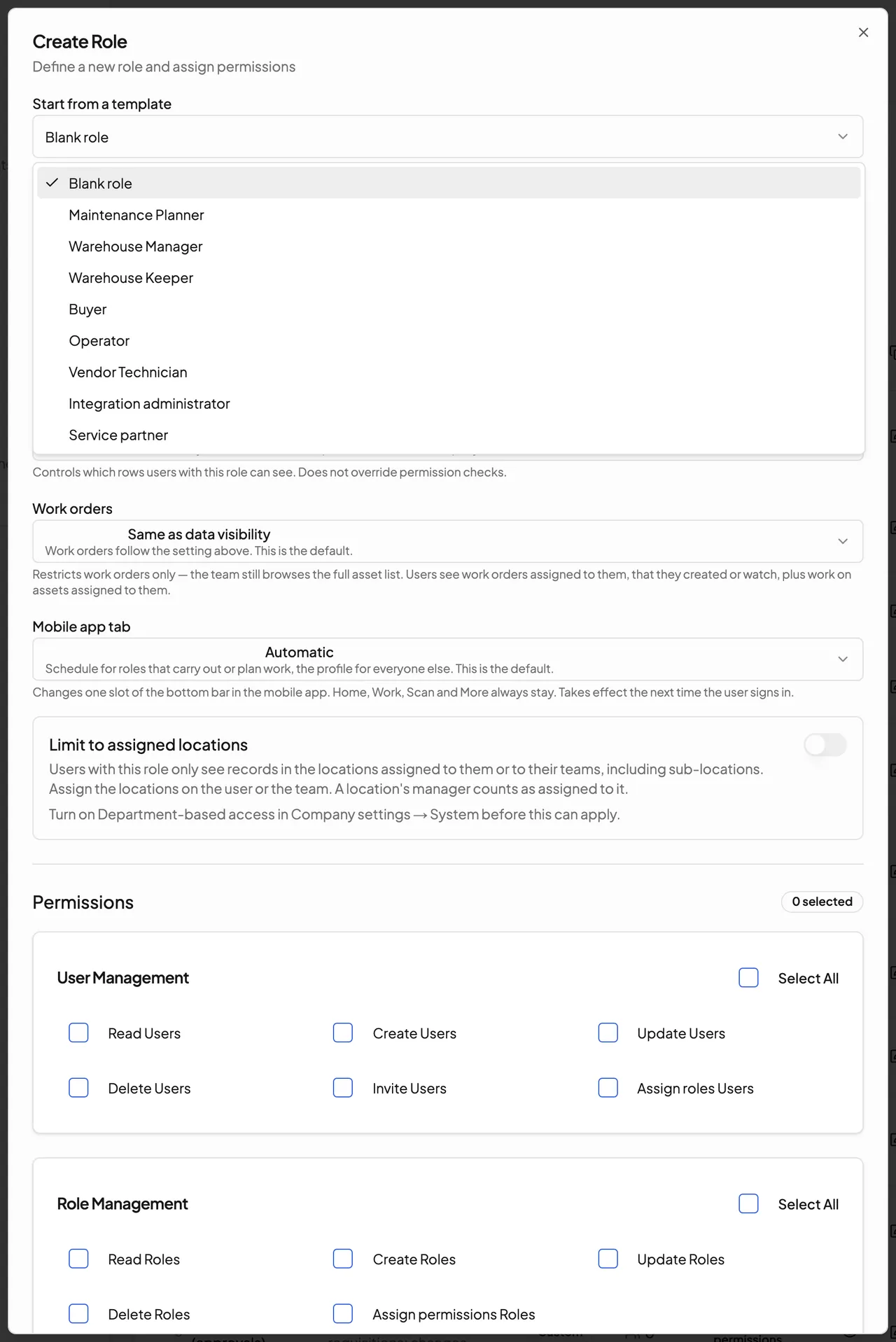
New Role opens a blank role or, through “Start from a template”, a ready-made one: Maintenance Planner, Warehouse Manager, Warehouse Keeper, Buyer, Operator, Vendor Technician, Service partner and Integration administrator. It fills in the name, description, permissions and data visibility, all of which you can change before saving. A template is a draft, not a decision: compare each ticked box with the job's column in your matrix, untick what the job does not need, starting with the sensitive permissions, and check its data visibility. Templates are offered only at creation; to start from an existing role, use Duplicate role on its row, Admin included.
Deleting is stricter than creating. A role that someone still holds cannot be deleted until they are given another one, and a built-in role you delete is gone for good: FreeMaint does not recreate it later.
In FreeMaint
Included in Core (free)Roles in FreeMaint
Roles live in Organization › Roles: reading the page needs the permission to read roles, Edit the permission to update them, and New Role or Duplicate role the permission to create them. With “Read Roles” alone, a role's row offers View, never Edit. Each role also chooses one tab of the mobile app, covered in lesson 7. Custom roles and templates are free on every plan.
Read the documentationDecide what each role can see
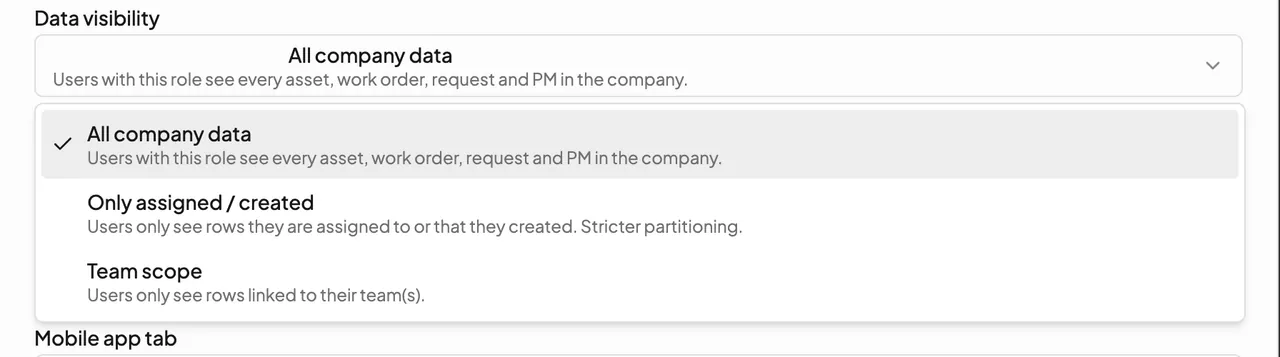
Permissions say what a person can do; Data visibility says on which records. It is set on each role, with three choices.
| Setting | What people see | Fits |
|---|---|---|
| All company data | Every record their permissions allow | Small sites, a single crew, planners and managers |
| Team scope | Records linked to their teams and to the teams' locations, plus what they are assigned to or created | Several crews or shifts, each with its leader |
| Only assigned / created | Only the records they are assigned to or created | Contractors and machine operators |
Below it, Work orders can narrow a single module. With “Only their own work orders”, people see the work orders assigned to them, created or watched by them, and work on their assigned assets, while assets, requests and preventive plans still follow Data visibility. It suits technicians who should browse every machine but only their own jobs.
To limit people to places, turn on “Limit to assigned locations” on the role, then assign the locations on the person or their team. Nothing applies until Department-based access is on in Company Settings › System, an administration setting that stays with the client. Someone limited but given no location then sees almost nothing, which the editor flags, and the limit holds only if every role of that person has it.
In FreeMaint
Included in Core (free)Data visibility in FreeMaint
Data visibility, the Work orders setting and “Limit to assigned locations” sit in the role dialog. Teams, their leaders and the locations each team can access are set in Organization › Teams. All of this is free on every plan.
Read the documentationTest every role before you hand it over
- 1
Use a test account
Use an account that belongs to nobody real and holds only the role to test, with no individual permission. Never a client's account, and not your own: your other roles would add theirs.
- 2
Do the job
Sign in and do what the job requires: update a work order, log time, adjust stock, submit a request.
- 3
Look for what must be missing
Check that what the role should not do is out of reach: no Delete, no costs, no approval.
- 4
Fix, then test again
Change the role, sign in again, and note the dated result in the matrix.
Example
The role matrix at Example Plant
Example Plant, the fictional snack bakery of this course, has a production site and a warehouse. The partner lists seven profiles, from the production supervisors who submit requests to the partner itself. There is no planner role: the maintenance manager plans.
Four profiles keep a role they already have. The supervisors keep Requester (lesson 5 adds one permission to it, validating work orders, for the hygiene sign-off) and the four technicians keep Technician, with All company data, because one crew covers both sites. The maintenance manager keeps Admin, and the partner holds the Service partner role, which FreeMaint created from its template with the client's invitation, with an access end date. An unchanged role is still read against the sensitive rows: Technician can move a work order backward, export five lists and hold “View labor Work Orders”, which shows logged hours, not money. The maintenance manager keeps all three on purpose, to undo a job started by mistake and let technicians see the hours on their jobs, and the matrix records why.
Three profiles need a new role. The buyer's comes from the Buyer template minus “Approve Vendors”, so that the buyer cannot approve a supplier they added themselves: the role orders, but approves nothing. The storekeeper's starts from the Warehouse Keeper template, which adjusts stock and receives deliveries. The matrix adds “Read Purchase requisitions” and “Create Purchase requisitions”: when a part runs short, the storekeeper raises a requisition and follows it (a Starter feature, see lesson 5). Every approval stays unticked. The template's Team scope would restrict nothing, since Example Plant has no teams, so it becomes All company data: the setting now says what really happens. The plant manager gets a copy of Viewer, renamed Plant manager, with one addition: “Approve Purchase requisitions”.
The Service partner role can read roles but not create or change them, on purpose. So the maintenance manager creates the three roles from the matrix and a test account, with the partner beside them. Signed in with that account, holding only the storekeeper's role, they confirm it can adjust stock, raise a requisition and open it again, but not approve one. The dated matrix goes into the handover file.
Five common mistakes
- Giving the Admin role “to save time”, and never taking it back.
- One role per person, so that forty roles drift apart.
- Forgetting that a second role widens what a person sees.
- Saving a role with no permission: it grants nothing.
- Fixing one person's access with individual permissions instead of their job's role.
Your turn: create one role
The exercise of this lesson asks for one custom role, created by you in your own workspace. It works on the free plan and needs no trial. In Organization › Roles, select New Role, start from a template or a blank role, tick the permissions of one job from your matrix, and save. A copy made with Duplicate role counts too, once saved.
What counts: a role you created yourself, still there when you check, with at least one permission. The roles created at signup, even those marked Custom, and roles made by someone else do not count. The check reads the record of who created each role, so a role made long ago may not be found: create a fresh one.
Template for this lesson
Role and permission matrix
Excel (.xlsx), blank, with formulas
Key takeaways
- A role is a list of permissions plus a data visibility; FreeMaint checks permissions, never role names.
- Build a matrix of jobs and permission families before creating any role, and keep one role per job.
- Decide the sensitive permissions one by one: work order transitions, approvals, deletion, export, costs and administration.
- Permissions and visibility add up across a person's roles, and Team scope without a team restricts nothing.
- Test every role with an account that holds only that role before handing it over.
Exercise in FreeMaint
Do it in your own FreeMaint workspace, then check it here. Required: your certificate is issued once every exercise of this course is verified.
Create a custom role
Create a role yourself with only the permissions a job needs, for example a plant manager who can read but change nothing, apart from approving purchase requisitions. The built-in roles do not count.
Required for the certificate.
Check your understanding
A few quick questions. Nothing is recorded.