Lesson 4 of 8 · 11 min
Importing data in waves and reconciling
Written by Melek Mehrez, founder of FreeMaint · Last reviewed November 16, 2026
Lesson objective
By the end of this lesson, you can plan a client's imports in waves, give each file a matching key and an import mode, and reconcile every import report with its source file before the next wave.
Lesson 6 of Implementing a CMMS gives the method: clean the file, import in waves, check each wave. This lesson applies it in FreeMaint, for a client whose spreadsheets you are about to turn into records: which list goes first, how a row finds the record it updates, which mode to choose, and how to prove that each wave arrived whole.
An import is the fastest way to fill a workspace, and the fastest way to fill it with duplicates. A few minutes of planning per file decide whether the client opens a register they trust or one they must clean by hand.
ISO 55013:2024 gives guidance on managing asset data, including the asset register, its history and data quality. In Spain, module 5035 of the specialization course in industrial maintenance digitalization (Royal Decree 480/2020) expects the learner to load equipment, spare parts and staff into the CMMS. An import plan and a control log are how you show where each record came from.
Plan the waves in the order of references
A row often points to another record: an asset to its location, a part to its vendor, a preventive plan to its asset. FreeMaint finds that record by its name, its reference or its #id, and never creates it on the way. When the name matches nothing, the row is still saved, without the link, and the report carries a warning. Import the assets before their locations and you get every asset, and no hierarchy.
| Wave | List | Points to | Key for later updates |
|---|---|---|---|
| 1 | Locations: sites, then areas | Its parent location | Name |
| 2 | Assets, with their components | Location, category, asset type, parent asset | Barcode |
| 3 | Vendors, then spare parts | A part points to its vendor and its stock location | Vendor name; part number |
| 4 | Preventive plans | Asset, team, assignee's e-mail, meter | Plan name, with its asset |
Thirteen lists import this way: locations, assets, spare parts, people, vendors, customers, work orders, preventive plans, requests, tools, qualifications, asset incidents and inspection results. A file holds up to 100,000 rows and 50 MB (2,000 rows for people), in CSV or Excel (.xlsx). That limit is per file, not per workspace, and it is not a target: a wave is as big as you can check. On a long list, import a few dozen rows first, check them, then the rest.
Some things do not come in by file. Meters are not one of the thirteen lists, so a plan that a meter drives waits until its meter exists on the asset (lesson 6 of this course). A spare part imports only its minimum stock, from the Min Quantity column: its reorder point, maximum stock level and reorder quantity are set on the part itself. People are not yours to import either: that file creates accounts and sends invitations, and who joins the workspace is the client's decision (lesson 1), so the Service partner role leaves out the people import. The client's administrator imports that file, or deliberately adds the permission to your role if they want you to do it.
Give each file a key and a mode
When a row should update a record instead of creating one, FreeMaint looks for that record in a fixed order: the ID column, then the Reference column, then the list's natural key, the column that identifies one record on its own. For assets, that is the barcode; for spare parts, the part number. For locations, vendors and customers, it is the name, and for people, the e-mail address. A preventive plan is found by its name with its asset, and a tool by its serial number, then its barcode.
The reference is the one FreeMaint gives each record, such as ASS-12: nobody types it. That is why a client's own asset codes belong in Barcode. A row that carries none of these keys cannot be matched to anything.
| Mode | What it does | Use it for |
|---|---|---|
| Create new only | Adds every row as a new record, without looking for existing ones, except for people | A first load into a list that is still empty |
| Update existing only | Updates the rows it can match; the others are skipped and reported | Corrections, such as a column fixed after a wave |
| Update existing & create the rest | Updates what it matches and creates the rest | A file that mixes new and existing records, where every existing one carries its key |
If the client's barcodes are the assets' key, turn on Unique asset barcodes in Company Settings › System before the first wave. An asset can then no longer take a code that another asset carries, on screen or by import, and the rows of a file run twice by mistake are refused instead of duplicated.
In FreeMaint
Included in StarterUpdating from an export
An export of a list carries the ID and Reference columns that an update matches on, and its columns are the ones the import expects: export, edit in Excel, import back with Update existing only. A cell left empty, or a column deleted, keeps the stored value. Exporting a list needs the Starter plan. On every plan, the client's administrator can also export the data archive as an Excel workbook whose sheets import as they are (lesson 8). Without either, the barcode or the part number is your key.
Read the documentationStart from the template, then check the file
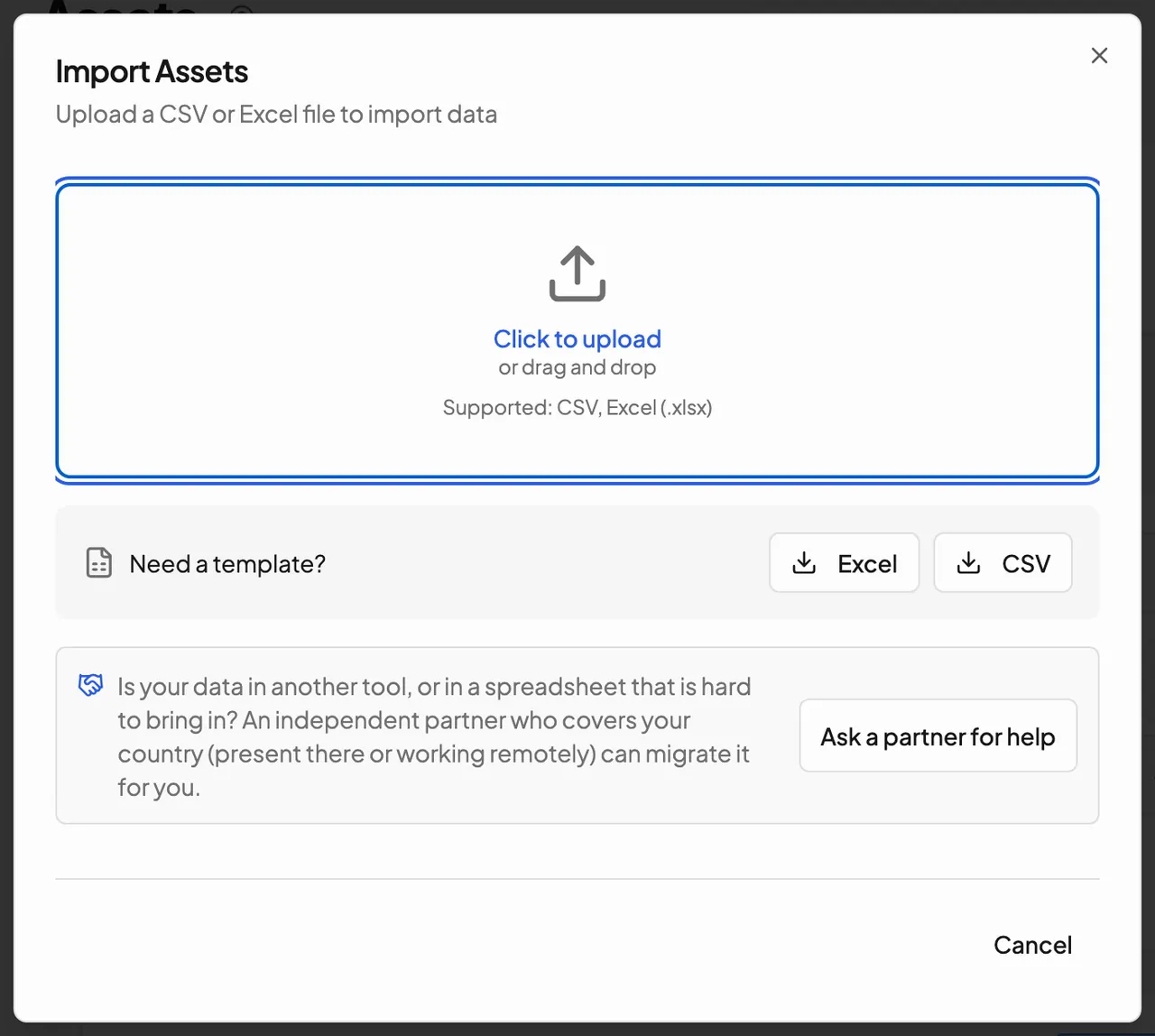
Each list that imports has an Import button on its page, and its window opens on the file step. Start every file from that list's own template: Need a template?, under the drop zone, downloads it in Excel or CSV. Keep its column names: each column then finds its field on its own, and you only check the matching. A column such as Location (Name) or Parent Asset (Name) takes the name of a record that already exists, spelled exactly. The template also carries the workspace's own custom fields as extra columns, so create the fields of lesson 3 before you download it. Then choose how the import is applied and click Check the file.
The check reads every row before anything is written. It counts the rows in the file, those it will import and those with errors, which are left out, and it lists warnings such as a barcode already in use. Only the person who uploaded the file can then click Start the import, and a checked file left more than 7 days expires. The import runs in the background: you can close the window, and the bell tells you when it is done. One import works at a time per company; the next one waits in line.
In FreeMaint
Included in Core (free)Importing in FreeMaint
Importing is free on every plan and adds to what is already there: no plan caps the number of records. Each list needs its own import permission; the Service partner role holds them all except the one for people. Three registers follow their module's plan, Starter: qualifications, asset incidents and inspection results.
Read the documentationReconcile every wave
A clean result says the rows were accepted, not that they are right. Reconciling compares each import with its source, first in numbers, then row by row, before the next wave starts.
- 1
Count the source
Before the import, write in the control log how many rows the file holds. The check must read the same number; if it does not, look at which sheet it read and which rows you sent.
- 2
Add up the four counts
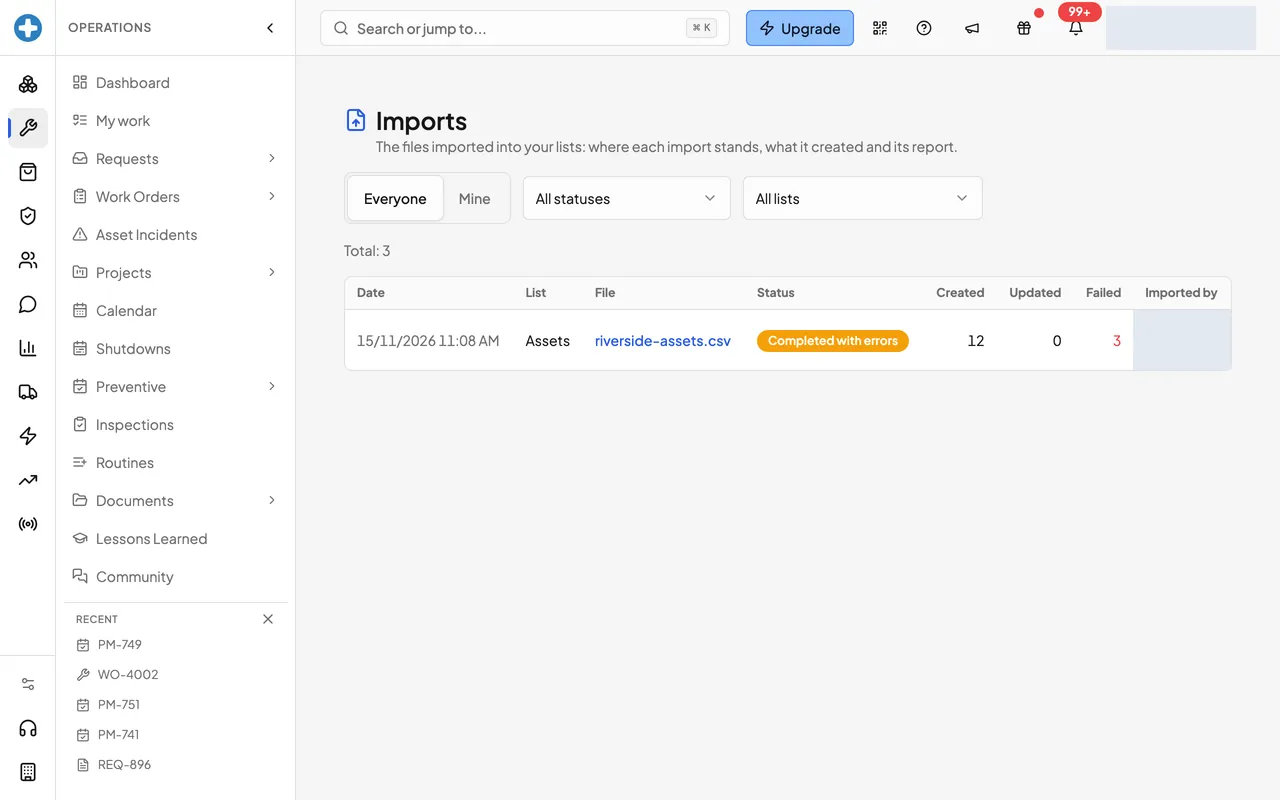
Open the import from the Imports page. On an import that ran to its end, created, updated, skipped and failed add up to the rows in the file. Every skipped or failed row needs a reason.
- 3
Read the report
Download the report: your columns, then Row, Status and Errors for each row. Read the warnings too: a row saved without its location still counts as created.
- 4
Fix the file, not the records
Correct the rows in your source file and import only those rows again: Create new only for rows that were never created, Update existing only for rows created without a link.
- 5
Write it down
Note the counts, the gap and the action in the control log the same day. The files of an import are deleted 30 days after it ends; its line in the history stays.
In FreeMaint
Included in Core (free)The Imports page
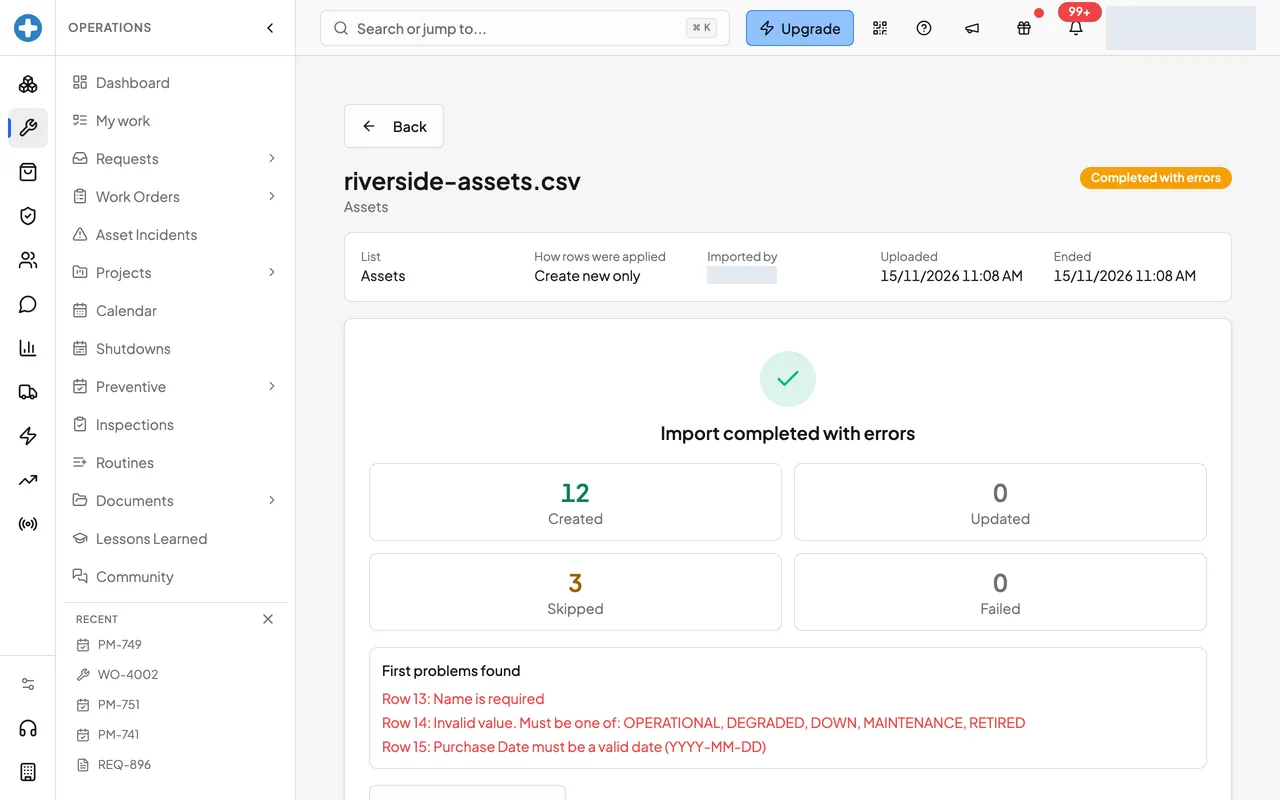
Imports, in the Analytics section of the menu next to Trash, keeps every import with its status, counts and author. With the Service partner role you see the imports you ran; the client's administrator sees everyone's. Stop ends an import after the batch in progress: what was imported stays, and Download the rows not imported gives the rest, ready to import again. Free on every plan.
Read the documentationExample
Example Plant's import plan
Example Plant, the fictional snack bakery of this course, hands the partner three spreadsheets: the maintenance equipment list, the storekeeper's parts list and a list of preventive tasks. The partner writes the location list from the client's site plan, with the maintenance manager, then four waves in the import plan, each with its key and mode, and turns on Unique asset barcodes: Example Plant's own codes, such as EX-L2-OVN-01 for the tunnel oven, will be the assets' key.
Wave 1 creates 10 locations: the production site, the warehouse site and the 8 areas under them, each with a name used nowhere else. The site codes, EX-PRD and EX-WH, are typed afterwards in each site's Site code field: the import has no column for them. Wave 2 creates the 60 assets with Create new only, the components attached to their machine through the parent asset, such as the tunnel oven's burners.
Wave 2 ends Completed: 60 created, 0 failed. The report still holds two warnings: in the client's equipment list, two rows said “Line 2 - Baking” with a hyphen (-), and the location is named “Line 2 – Baking” with an en dash (–). A name must match exactly, apart from letter case and spaces at either end, so both were saved without a location. The partner corrects the two cells and imports those two rows again with Update existing only: FreeMaint finds both assets by their barcode, and the report shows 2 updated. The control log reads 60 source rows, 60 created, 2 warnings, 2 corrected.
Wave 3 brings the vendors named in the parts list, then the parts, keyed on their part number. The compressor oil filter arrives with its minimum of 2; its reorder point of 3 and maximum of 6 are typed on the part. Wave 4 waits for lesson 6: the forklift and compressor plans need their hour meters first.
Five common mistakes
- Importing the assets before their locations: every asset arrives, with no place in the hierarchy.
- Running Create new only on a file that already holds existing records, and doubling them.
- Updating with a file that has no ID, reference or natural key: every row is skipped, or created a second time.
- Sending 20,000 rows in one wave because the limit allows it, then checking none of them.
- Reading the counts and not the report, so warnings about missing links go unseen.
Your turn: import Example Plant's assets
The exercise of this lesson asks for at least 20 new assets, imported by you into your own workspace. Download the two Example Plant files next to the exercise card: the locations, file 1, and the assets, file 2. FreeMaint never writes them into a workspace: you import them yourself through the normal import window, the locations from Locations first, then the assets from Assets. The files are already corrected. The exercise works on the free plan and needs no trial.
What counts: an import of the Assets list that you started yourself, which ended Completed or Completed with errors, and each asset it created that still exists in your workspace. What does not: rows the import updated, an import someone else ran, an import that was stopped or failed, assets created one by one on screen, sample data, and assets you delete afterwards. The locations file places the assets but does not count by itself. Click Check my exercise once the import has ended. There is no time limit: the import counts for as long as the assets it created are still in your workspace.
Template for this lesson
Import plan and control log
Excel (.xlsx), blank, with automatic checks
Key takeaways
- Import in the order of references: locations, assets, vendors and parts, then preventive plans; a name that matches nothing is saved without its link.
- Give every file a key: the ID or Reference of an export, or the list's natural key, such as the barcode for assets and the part number for parts.
- Use Create new only for a first load, Update existing only for corrections, and Update existing & create the rest only when every existing record carries its key.
- On a completed import, created, updated, skipped and failed add up to the rows of the file; read the report's warnings as well as its counts.
- Write each import in the control log the same day: its files are deleted 30 days after it ends.
Files for the exercise
Download them, then import them yourself from the import window of the app. They contain fictional data only.
- Example Plant locations (file 1, import first)
Example Plant locations (file 1, import first)
Excel (.xlsx), 10 fictional locations, ready to import
- Example Plant assets (file 2, import second)
Example Plant assets (file 2, import second)
Excel (.xlsx), 60 fictional assets, ready to import
Exercise in FreeMaint
Do it in your own FreeMaint workspace, then check it here. Required: your certificate is issued once every exercise of this course is verified.
Import twenty assets
Import at least 20 new assets yourself from a spreadsheet, with the asset import. Sample data does not count.
Required for the certificate.
Check your understanding
A few quick questions. Nothing is recorded.