Lesson 5 of 8 · 11 min
Requests, QR codes and approval workflows
Written by Melek Mehrez, founder of FreeMaint · Last reviewed November 16, 2026
Lesson objective
By the end of this lesson, you can set up a client's request form and public QR reporting, design and switch on an approval workflow with named approvers and required fields, and say what happens to it when the plan changes.
Lesson 7 of Implementing a CMMS, Organizing work requests and work orders, gives the method: a request is a signal, a work order a decision, and someone reviews what lies between. This lesson configures that flow: who reports, what the form asks, and who approves each move.
An approval workflow is a rule on a status change. Set well, it brings in the right person at the right moment. Set badly, it blocks everyone, because the only approver is on holiday, or protects nothing, because the step names nobody, or names the very people who ask.
From request to work order
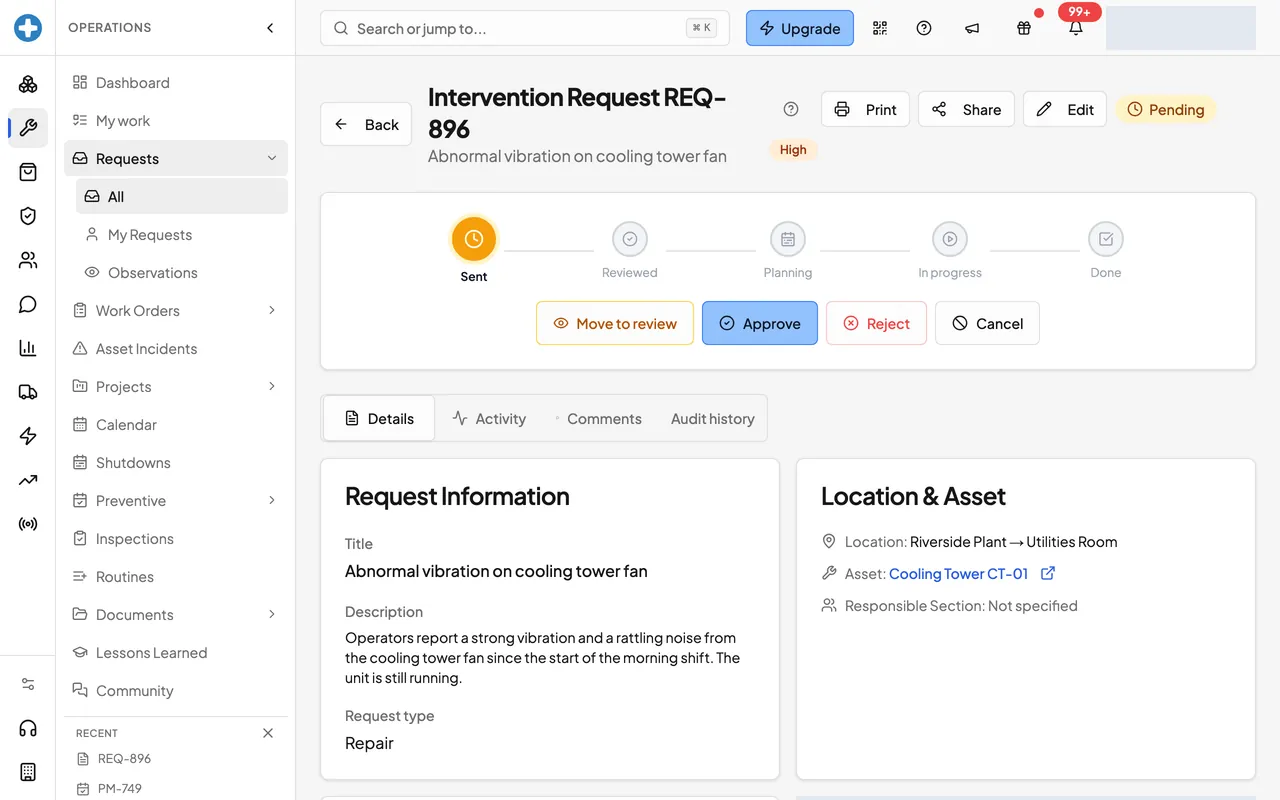
In FreeMaint, approving a request creates its work order, which keeps the asset, the photos and a link to the request. With Approve & Assign, the approver also assigns the technician. Anyone whose role holds the permission to approve requests can do it, until a workflow narrows who may.
Public QR reporting: open by design
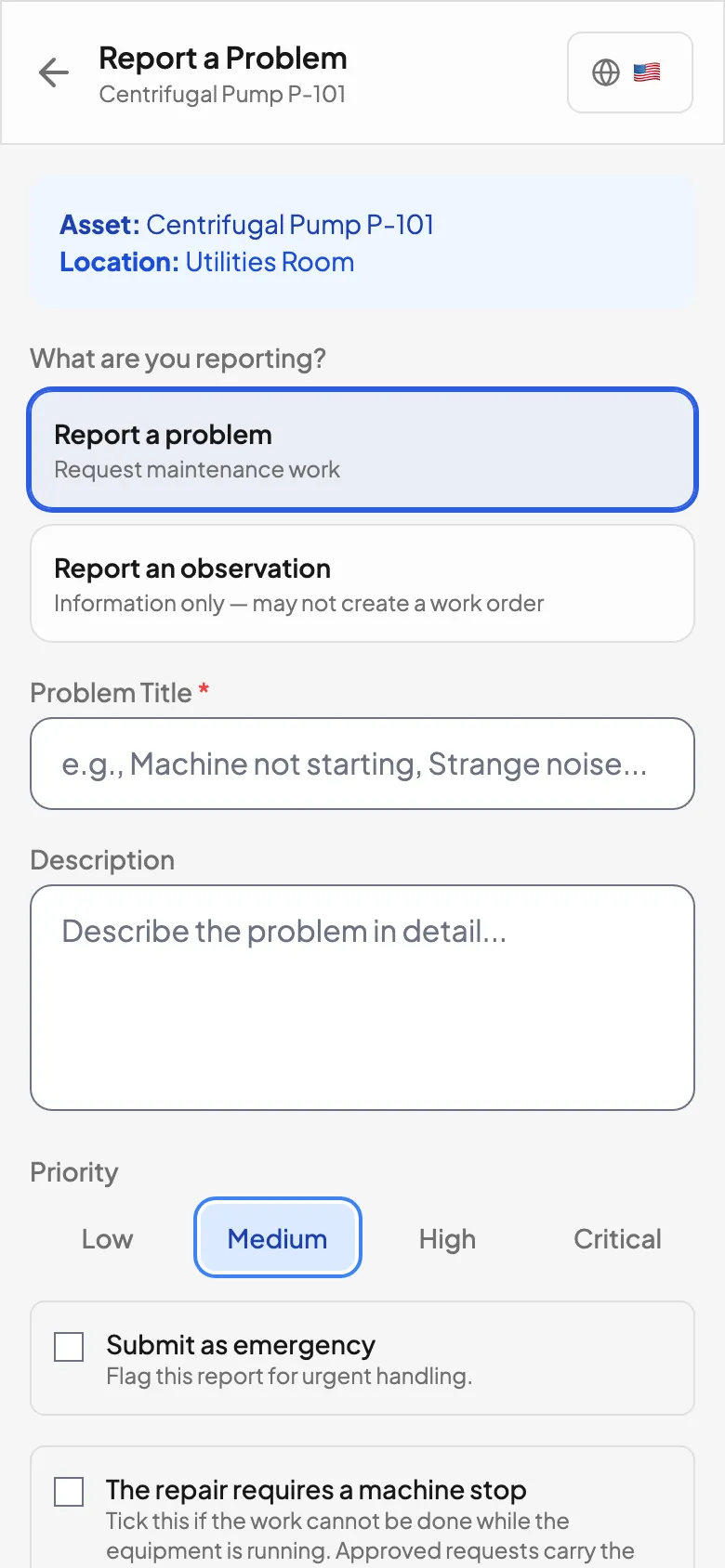
Every asset, location and meter QR code opens a public page where anyone can report a problem without an account. So does the general request QR, one code for the whole company, posted at entrances. Everything else a scan offers, such as creating a work order, entering a meter reading or starting an inspection, asks the person to sign in.
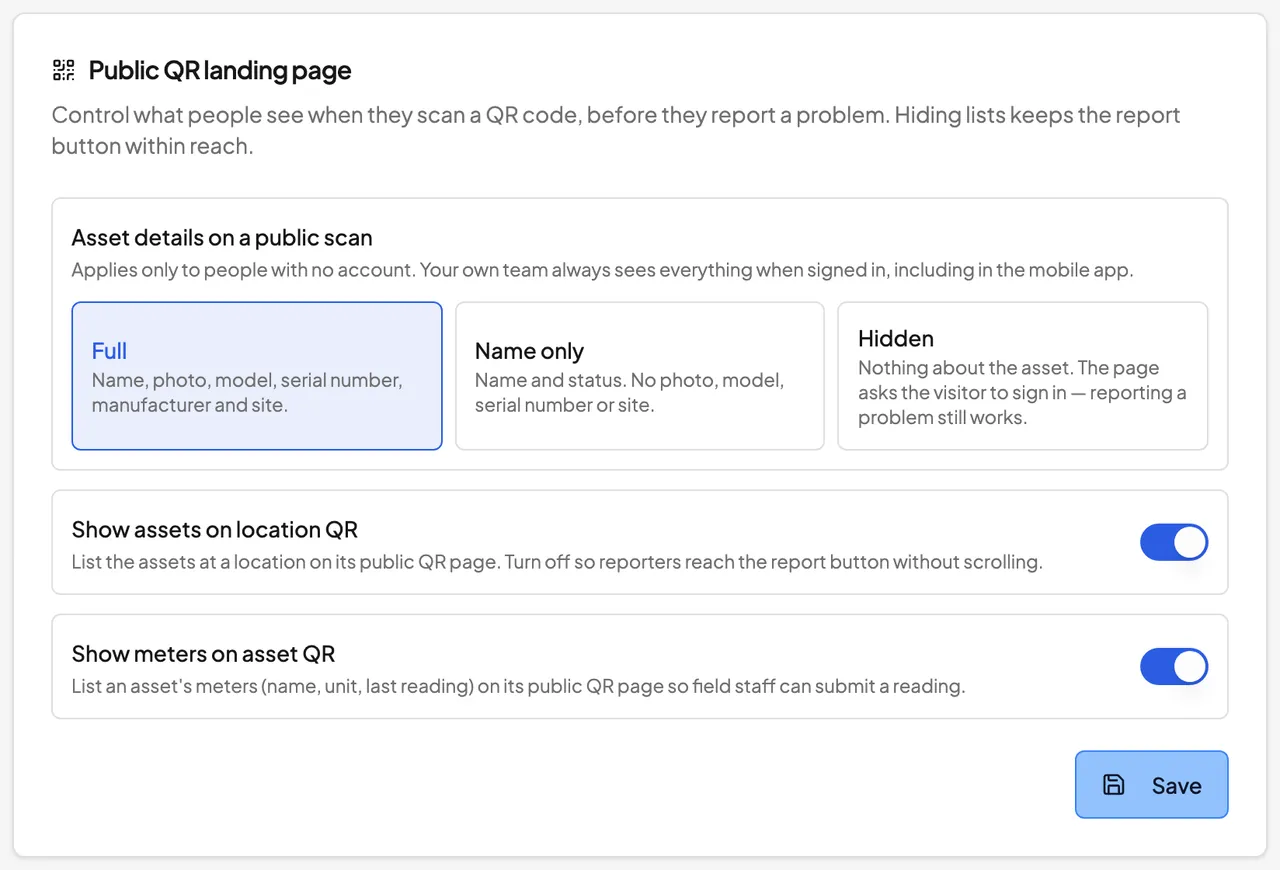
What you decide is how much a visitor learns, in Company Settings › Request form:
- Asset details on a public scan: Full, Name only (name and status) or Hidden (nothing; reporting still works). It applies only to people without an account.
- Show assets on location QR and Show meters on asset QR: lists that push the report button down the page.
- Privacy notice on public forms: the client is the data controller for these reports, so link the client's own privacy policy.
- General request QR: reporters either pick a location from a list or describe where the problem is.
The request form: what reporters must answer
Required native fields decide what a request must contain before it is sent. Title is always required. You can require others: the description, the asset, the location, photos and, on the public form only, the reporter's name and contact details. The rules apply to the app and the public QR form alike, and to new requests only. Ask only what the reviewer cannot guess.
In FreeMaint
Included in Core (free)Requests and public QR codes in FreeMaint
Company Settings › Request form holds the Public QR landing page card, the privacy notice, the General request QR and the Required native fields, on every plan, for anyone who may configure the CMMS.
Read the documentationIn FreeMaint
Included in BusinessHidden fields and labels in FreeMaint
On Business, the same page also hides optional fields, such as the due date or the emergency flag, and renames labels and options. A renamed label is not translated; the stored value does not change.
Read the documentationDesign the workflow before you build it
EN 17007, the European standard on the maintenance process and its indicators, describes maintenance as a process made of sub-processes. Map the client's real chain of decisions first: who receives a request, who decides, who checks the finished job. The workflow writes that chain down; it should not invent one. Each step answers five questions.
| Question | What to decide | Watch out for |
|---|---|---|
| Which move? | The status the record moves into: Approved for a request, Validated or Closed for a work order | A step fires when a record enters its status |
| Who approves? | A role, a named person, or someone the record designates: creator, assignee, team leader, location manager | One named person who is away blocks every record; the role that submits would approve its own requests |
| What must be there? | Fields filled in first: a work summary, photos, a signature, a custom field | Required fields bind everyone, administrators included |
| For which records? | All, or some: an asset category, a request type, an amount | Conditions need the Business plan |
| Who covers an absence? | A role two people hold, a backup role, the client's administrators | Decide before the first holiday |
The approval workflow matrix of this lesson has one row per step and a column for each answer, plus who is told and the plan needed. Fill it in with the client before you switch anything on.
Approval workflows in FreeMaint
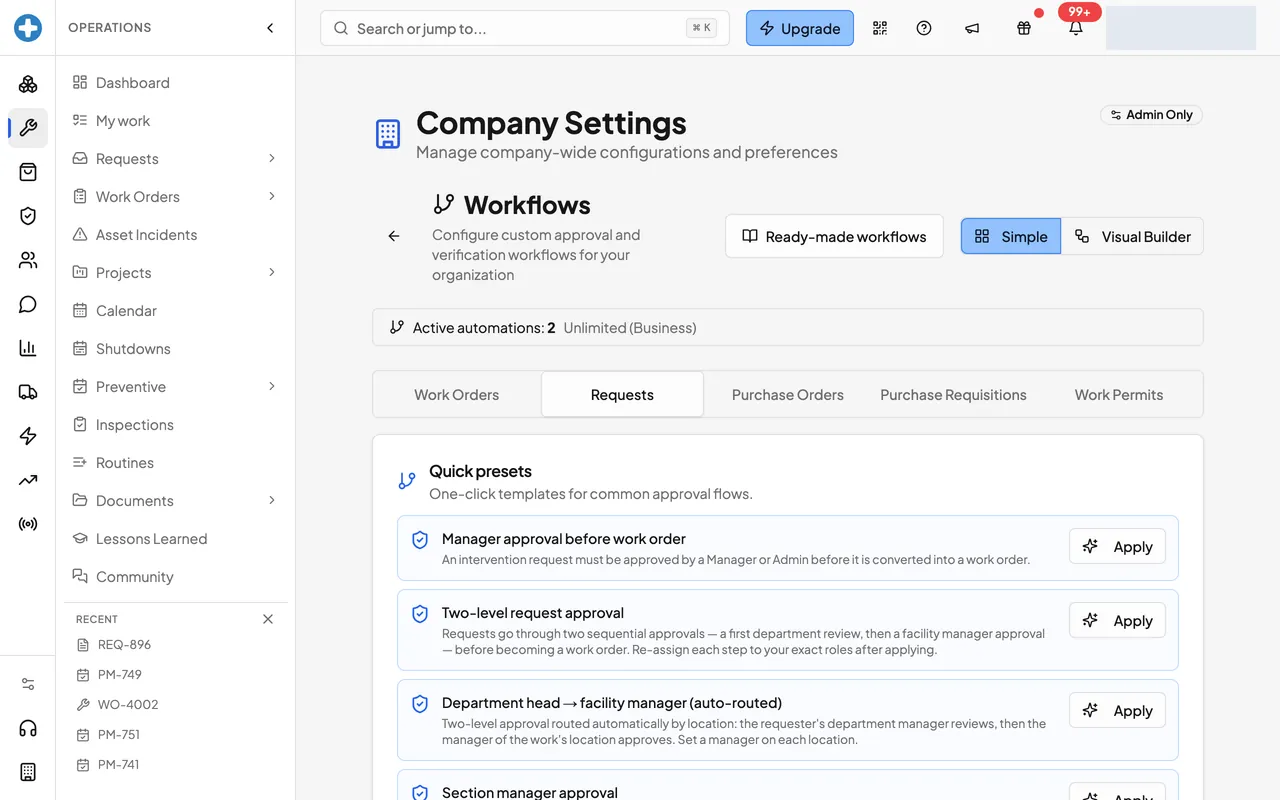
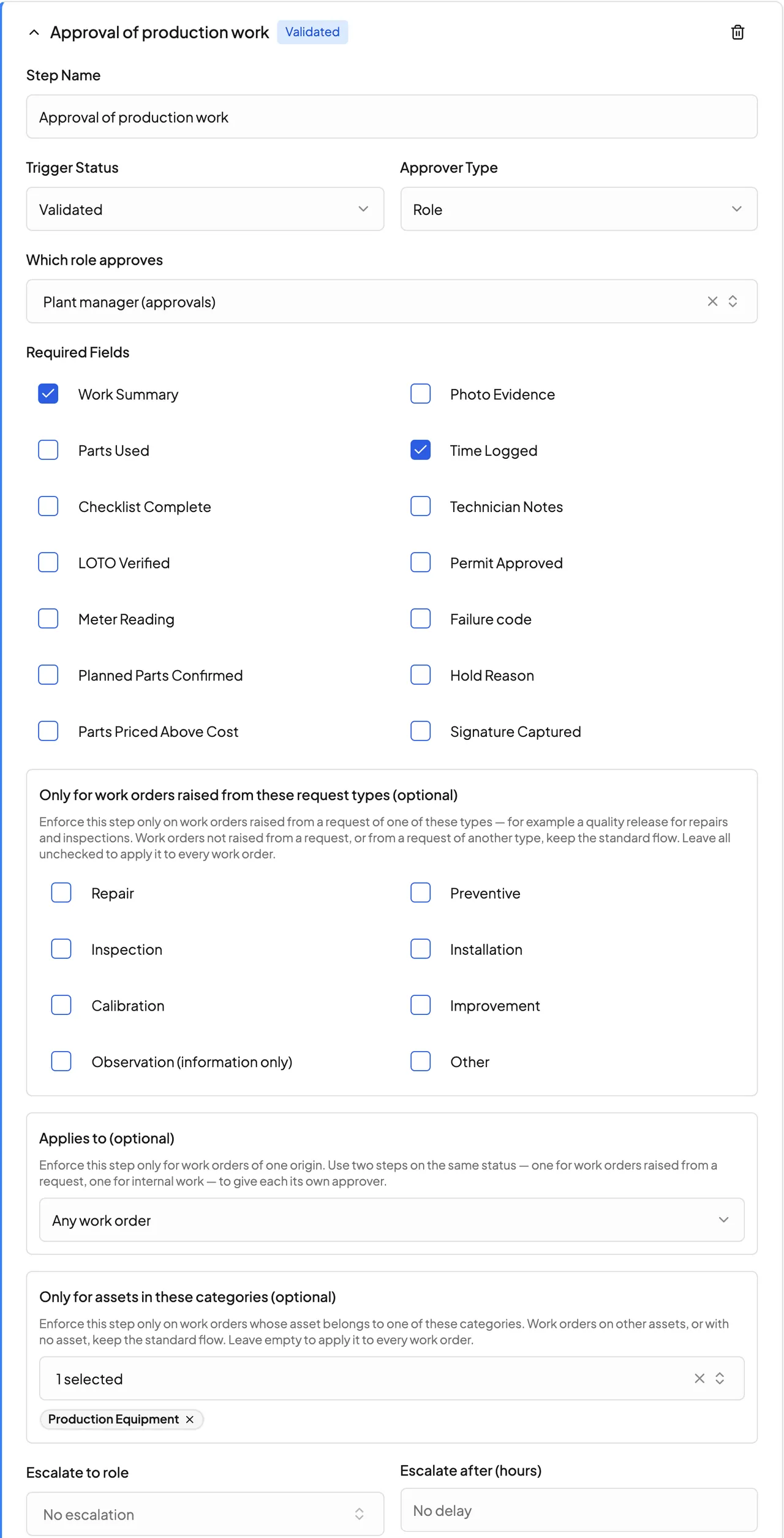
Company Settings › Workflows holds one workflow per record type: work orders, requests, purchase orders, purchase requisitions and work permits. Each step has a trigger status, an approver and required fields. When someone moves a record into that status, FreeMaint checks that they may approve and that the fields are filled in; otherwise the record stays where it is.
On work orders, requests and purchases, all the steps on one status apply to the same move, so one person must satisfy them all. For two approvals in turn, use two successive statuses: the Two-level request approval preset asks a first role when a request goes to Reviewing, a second when it is Approved. Work permits differ: their steps on one status are signed in turn, by different people.
Approvers can be a role, a specific user, the creator, the assignee, the team leader, or a manager found from the record, such as the requester's department head. Anyone allowed to make this change names nobody: it only demands its fields. Except on purchase orders, the people who may approve a step are told when a record waits for them, unless its Notify on entry is off; on work orders, only steps on Validated and Closed notify.
Quick presets, such as Manager approval before work order, build a workflow in one click. Applying one switches the workflow on and replaces its steps; then point them at the client's roles. On the Requests tab, Auto-approve emergency requests turns a request flagged Emergency into a work order at once. The editor shows a workflow in a Simple view or a Visual Builder; that Simple view is not the workspace's Simple mode.
In FreeMaint
Included in StarterApproval workflows in FreeMaint
Company Settings › Workflows is open to anyone who may configure the CMMS. Saving a workflow or applying a preset needs Starter: five active steps in total, across all record types; Business removes the limit. A workflow keeps applying whatever the plan, but below Starter it can only be deleted, with Delete Workflow, not edited or switched off. In Simple mode, no workflow can be switched on.
Read the documentationConditions, escalation and backup approvers
On Business, a step can apply to some records only: a request type, the origin of a work order, an asset category, a permit type, or an amount band on purchases. It can demand a precise value, such as a ticked box, not just an answer. And it can escalate: its approvers are reminded, then a chosen role is alerted after a delay. Tick This role can also approve to make it a backup approver, whose members may approve at any time; the delay itself never gives anyone that right.
In FreeMaint
Included in BusinessStep conditions in FreeMaint
Conditions and required values appear on each step once the workspace is on Business, and so do escalation reminders. After a move to Starter, conditions already set keep applying and can be cleared, but not edited; below Starter, the whole workflow can only be deleted.
Read the documentationPurchase requisitions and separation of duties
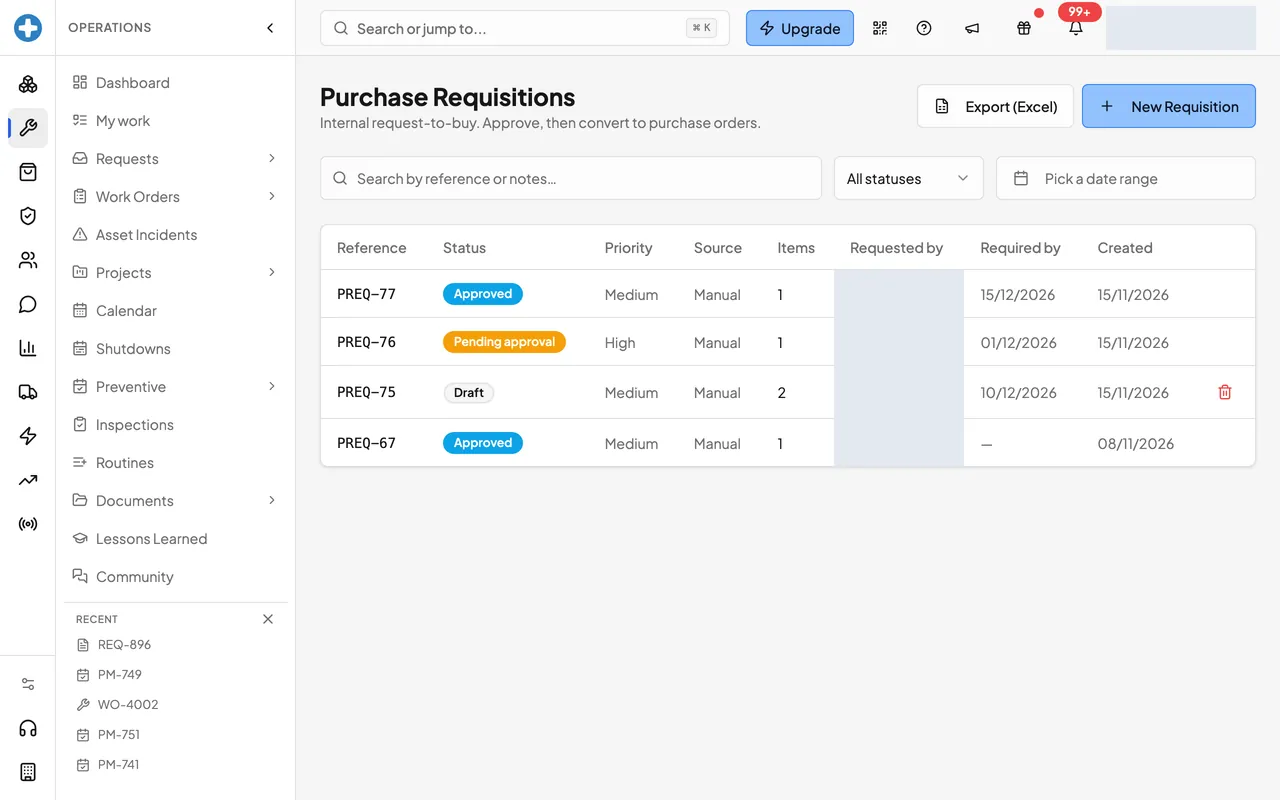
A purchase requisition is an internal request to buy. Someone drafts it and selects Submit for approval; an approver approves or rejects it; Convert to Purchase Order then creates purchase orders, one per supplier.
Separation of duties means the person who asks is not the person who approves. ISO/IEC 27001 lists it among its security controls as segregation of duties, control 5.3 of its Annex A. FreeMaint does not refuse an approval because the approver raised the requisition: the separation comes from your design. Give the permission to approve requisitions only to approvers, and name them in the workflow.
In FreeMaint
Included in StarterPurchase requisitions in FreeMaint
Purchase Requisitions, in the menu, lists them on every plan for anyone allowed to read them. Creating, approving and converting need Starter and the matching permissions; the workflow on the Purchase Requisitions tab decides who, among those allowed, may approve.
Read the documentationExample
Requests and approvals at Example Plant
Supervisors at Example Plant, the course's snack bakery, report from the QR codes on the line machines. Contractors walk the lines too, so you set Asset details on a public scan to Name only, which also keeps meter readings off the public page. You link the plant's privacy policy and post the general request QR at the entrances of EX-PRD and EX-WH, with the location list on. You require the description and the reporter's email, so a reporter without an account gets a tracking link and can be reached.
Requests: one step on Approved, naming a Request approver role that holds the permission to approve requests. The maintenance manager creates it, adds it to the role matrix of lesson 2 and gives it to himself and to his deputy, the senior technician: both are told when a request waits, and either can approve. Your Service partner role, which could approve requests until now, no longer can.
Work orders: one step on Validated, naming the Requester role the supervisors hold and requiring “Line released after hygiene check” from lesson 3, with Ticked as its required value, so that a supervisor who answers No cannot validate. Validating work done for them is a sign-off, not an approval of their own request. An asset category condition on Production Equipment, the category the import file of lesson 4 gives the line machines, keeps warehouse and building jobs out. The compressors and the boiler carry it too, so the matrix notes that their jobs also wait for a supervisor's sign-off. The maintenance manager gives the Requester role the permission to validate work orders; you turn on Require validation before closing a work order in Company Settings › System, so no line job skips the step.
Purchase requisitions: the storekeeper raises them, or the Low Stock page drafts them (lesson 6), a step on Approved names the Plant manager role from lesson 2, and the buyer converts them: three people, three duties. When the plant manager is away, the maintenance manager approves as administrator, and the matrix says so. Three active steps in all: Example Plant is on Business, as its custom fields from lesson 3 require, so no cap applies.
With the maintenance manager, you try each workflow on a first real request, work order and requisition, moved by the people each step names. Your own Service partner account must now be refused at each step. Then you fill in the matrix: who approves, what is required, who is told.
Five common mistakes
- A workflow whose only approver is one person, with nobody planned for their absence.
- Naming a role as approver without giving it the permission the move itself needs.
- Reading a step set to Anyone allowed to make this change as an approval: it only checks fields.
- Switching a workflow on during a trial and forgetting it: it keeps applying, and can then only be deleted.
- Promising the client that public QR reporting can be switched off.
Your turn: switch on an approval workflow
The exercise of this lesson is checked in FreeMaint. In Company Settings › Workflows, set up a workflow on any record type, for example work orders validated by a supervisor role, then switch it on and save. Applying a Quick preset counts too.
What counts: a workflow switched on, with at least one active step that names an approver, whose last change is yours. What does not: a workflow that is off; one whose active steps all use Anyone allowed to make this change; one someone changed after you; one you only opened or saved unchanged, since no change is recorded; one deleted before the check. An older workflow with no recorded change is not found either: change it.
Approval workflows need the Starter plan. If your workspace is on Core and you manage it, starting this course opens a 30-day Academy trial there, once per workspace, that includes approval workflows: up to five active steps, without conditions or purchase requisitions. Put the workspace in Normal mode first. When the trial ends, your workflow keeps running and can only be deleted, in Company Settings › Workflows.
Template for this lesson
Approval workflow matrix
Excel (.xlsx), blank, with automatic checks
Key takeaways
- Approving a request creates its work order; a workflow narrows who may approve, it never grants the permission to do so.
- Public QR reporting is always on: decide what a visitor sees, what every report must contain, and who reviews what arrives.
- A step is a trigger status, an approver and required fields; except on work permits, steps on one status apply to the same move, so approvals in turn need successive statuses.
- Plan absences before they happen: a role two people hold, a backup role on Business, the client's administrators as a last resort.
- Separation of duties comes from your roles and workflows: whoever raises a requisition should not hold the permission to approve it.
- A workflow keeps applying whatever the plan; below Starter it can only be deleted.
Exercise in FreeMaint
Do it in your own FreeMaint workspace, then check it here. Required: your certificate is issued once every exercise of this course is verified.
Set up an approval circuit
Set up and enable an approval circuit with at least one step that names an approver, for example work orders approved by a supervisor. The last change to it must be yours.
Required for the certificate.
Check your understanding
A few quick questions. Nothing is recorded.