Lesson 7 of 8 · 11 min
Preparing the field: mobile and QR labels
Written by Melek Mehrez, founder of FreeMaint · Last reviewed November 16, 2026
Lesson objective
By the end of this lesson, you can choose each role's mobile tab with the client's administrator, plan and print QR labels for assets, locations and parts in batches, and tell the client exactly what a scan shows and what the app does without signal.
Lesson 9 of Implementing a CMMS gives the method: train each role, run a pilot, go live with a checklist. This lesson prepares what that checklist takes for granted: phones that open on the right screen, asset QR code labels on the machines, and an honest answer to “does it work without signal?”.
The field is where a rollout is judged. A label nobody can scan, a bottom bar that hides the technician's day, or an offline promise that fails in the cold room costs more trust in a week than any setting gains. Five questions follow: what to promise about working without signal, which tab each role sees, how QR labels are printed, what a scan shows, and where each label goes. Using the app day to day is not covered here.
What the app does without signal
What a technician does without signal is saved on the phone and sent when the connection returns, in the order it was done and never twice. That covers:
- Work orders: start one, put it on hold or complete it; tick its steps and record their readings; add photos and comments; log time. A work order created offline is sent too, but its photos cannot follow it: add them once it has synced.
- Meter readings, with or without a photo of the dial.
- Inspections: start a run, answer each point with its photos, complete it.
Closing, validating, cancelling or reopening a work order waits for a connection. So does a completion held for an approval, a permit or a signature: these are decided against a state the phone cannot see. Requests, purchase requisitions, preventive plans and scheduling need a connection too. The request form still opens without signal, so a report can be typed in the basement and sent from the stairs.
The phone also works only on what it holds. In Smart mode, the default, it saves the technician's open work orders as they use the app, about twenty at a time. Before a day without signal, Full offline downloads up to 150 of their open work orders, earliest due first, with the inspections due in the coming week and the assets concerned. Requests, the parts catalog and other people's work orders are never in it.
In FreeMaint
Included in Core (free)Working offline in FreeMaint
The mobile app for iOS and Android is free on every plan. Each technician chooses Smart or Full offline on the Offline copy card, reached from More or from the profile, and the Sync screen lists what still waits to be sent and what needs their attention. Meter readings and inspection runs need the Starter plan or above, offline as online.
Read the documentationOne tab per role
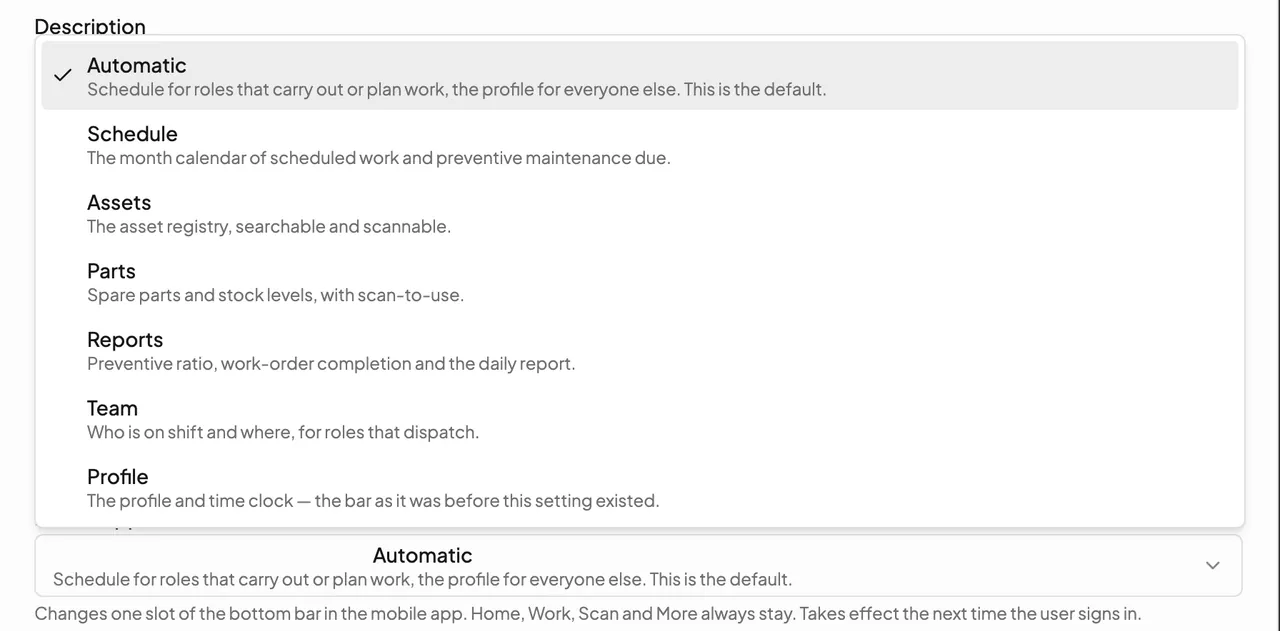
The app's bottom bar has five places. Home, Work, Scan and More always stay; the fourth place follows the role, through the Mobile app tab setting in the role dialog: Automatic, Schedule, Assets, Parts, Reports, Team or Profile.
Automatic gives Schedule to roles that carry out or plan work, and the profile to everyone else. That suits technicians. It rarely suits a storekeeper or a plant manager, whose day is elsewhere, so decide the tab with each profile of the role matrix from lesson 2.
| Profile | What their day needs | Mobile app tab |
|---|---|---|
| Technician | Scheduled jobs and the preventive work due | Automatic (Schedule) |
| Storekeeper | Stock levels, and scanning a part to take it out | Parts |
| Plant or site manager | Preventive ratio, completion and the daily report | Reports |
| Requester | Report a problem and follow it | Automatic (Profile): Scan is always there |
An option is greyed out when the role lacks the permission its screen needs, and names it: Assets needs the permission to read assets, which the default Requester role does not hold. A person with several roles gets the tab of the first of their roles that sets one.
The change takes effect the next time the user signs in. Set the tabs the week before training, not during the session, or half the room will see the old bar.
In FreeMaint
Included in Core (free)The mobile app tab in FreeMaint
Mobile app tab sits in each role's dialog, in Organization › Roles, on every plan. Changing a role needs the permission to update roles, which the Service partner role does not hold: the client's administrator applies the choice, with you beside them.
Read the documentationPrint QR labels in batches
Every asset, location and part gets its own QR code the first time one is needed, and keeps it. The code is a web address ending in a short random string, never the name or the reference: renaming or moving an asset does not change it, and a reprint carries the same code. Any phone camera opens it, without the app.
ISO/IEC 18004, the QR code standard, builds error correction into every symbol: a little dirt or a scratch rarely stops a scan. A torn or half-covered label does, which is why placement matters as much as printing.
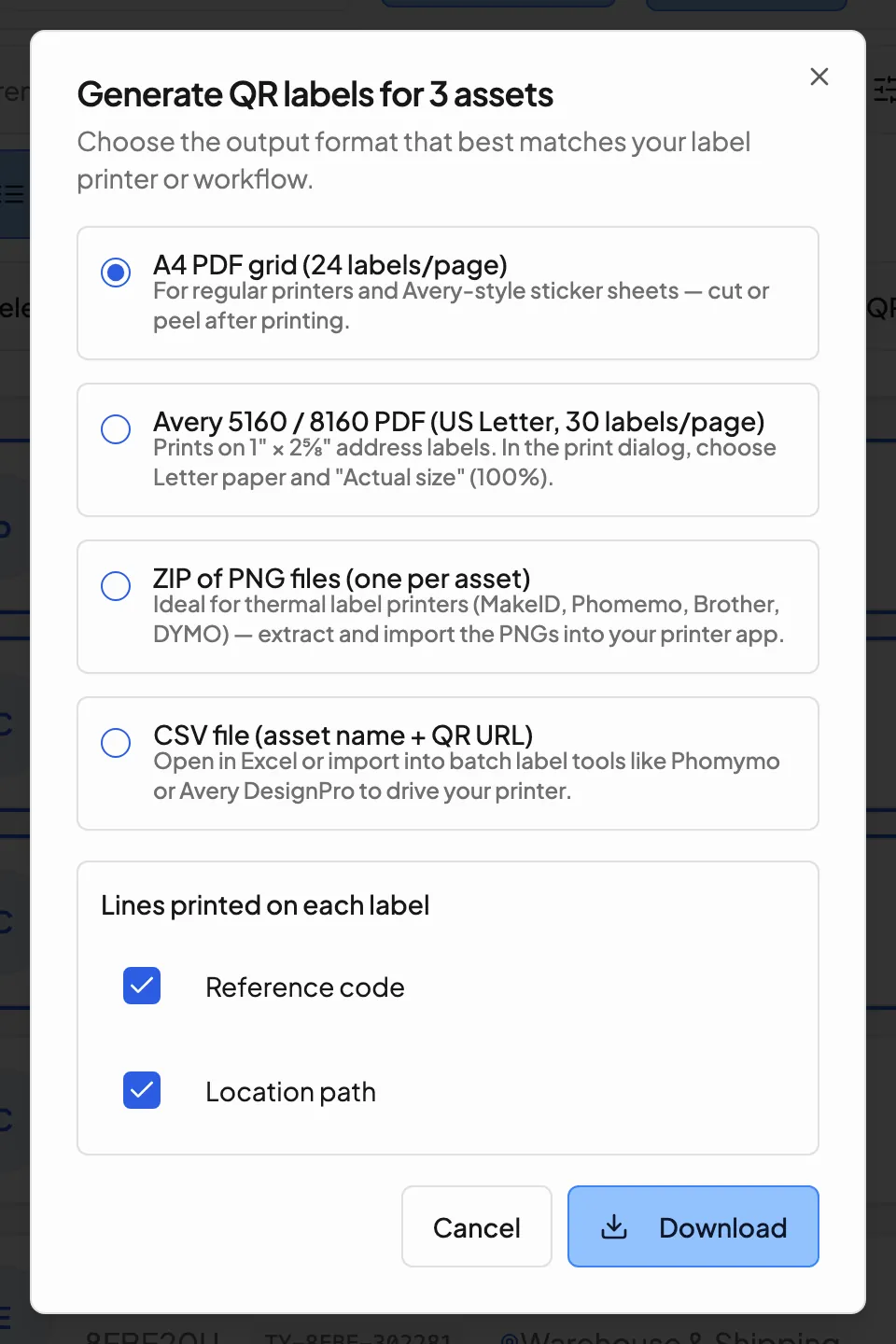
From Assets, select rows, then Generate QR codes; when the filters match more rows than the screen shows, the list offers to select them all, up to 1,000 at a time. Filter by location to print one area per batch, in the order you will stick them. Locations work the same way. On Parts, the header box selects the parts loaded on screen, so filter or scroll to the end first (1,000 at most per batch). A record's own page prints a single label.
| Format | Use it for |
|---|---|
| A4 PDF grid (24 labels/page) | An office printer and A4 sticker sheets |
| Avery 5160 / 8160 PDF (US Letter, 30 labels/page) | US Letter sheets of 1" × 2⅝" address labels |
| ZIP of PNG files (one per asset) | A thermal label printer, through its own app: each image is the code alone, so any name is added there |
| CSV file (asset name + QR URL) | Label design software that prints each row's name and location beside its code |
Only the two PDF sheets print text with the code. The ZIP holds the code alone, each PNG named after its record. The CSV gives each record's name, location and QR URL, from which label software draws the same code. On the sheets, Lines printed on each label adds two lines under the name, both ticked by default: the Reference code, FreeMaint's own reference such as ASS-12 (a part's number when it has one), and the Location path. No label prints an asset's Barcode field, so when the floor quotes the client's own codes, untick Reference code: an ASS- reference would be a code nobody uses. Part labels also offer a Barcode type: Code 128 barcode, for handheld laser scanners that cannot read QR codes, or Both on the A4 grid.
In FreeMaint
Included in Core (free)QR labels in FreeMaint
Generate QR codes appears on the selection bar of Assets and Parts, and Generate QR on Locations. Printing needs only the permission to read those records, so the Service partner role can print every label. All four formats are free on every plan.
Read the documentationWhat a scan shows, and to whom
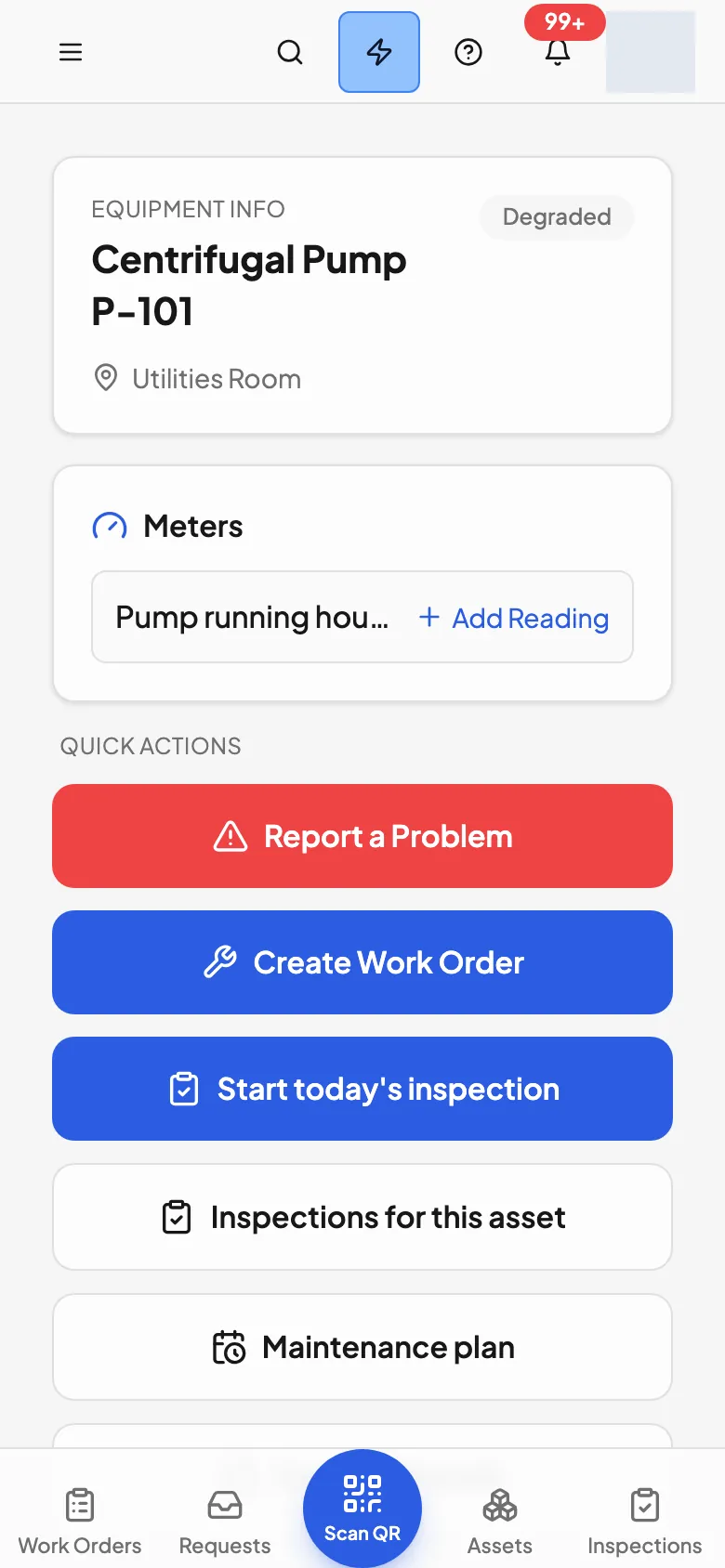
The same label leads to different pages. Someone signed in to the company opens the record: its full page on a computer, a short page on a phone. On an asset with a meter, someone who can record readings first sees a Meters card with Add Reading. Then come Quick Actions filtered by the person's permissions, such as Report a Problem and Create Work Order. The app's own Scan button offers the same kind of choice, under the same permissions.
Check those actions role by role before go-live. The default Technician role, for example, cannot create work orders: its scan offers Report a Problem, not Create Work Order. That may be exactly what the client wants, if every corrective job starts as a request; if not, it is a permission to add in lesson 2's matrix.
Without an account, the label opens the public QR page set in lesson 5: anyone can report a problem, and the client decides how much of the asset that page shows. There is no switch that turns public reporting off, so a label on a machine is a way in for every visitor and contractor.
Plan QR labeling area by area
No standard says where a label goes; what follows is good practice. A labeling plan answers four questions for each area: what gets a label, where it goes, what it is made of, and who replaces it.
- 1
Label what gets reported first
Critical assets first, then the locations where requesters work, so they can report “here” without picking a machine, then the general request QR at the entrances. Parts bins follow, with the storekeeper.
- 2
Place it where a phone can reach
On a fixed part of the frame, at a height a person can scan without climbing, away from guards that open, hot surfaces and spray, and on the same side of every machine of a type.
- 3
Choose the material for the area
Paper is enough in dry indoor areas. Washdown, oil and outdoor areas need a synthetic label, such as polyester, or a laminated one; for cold rooms and hot equipment, ask the label supplier for an adhesive rated for the temperature.
- 4
Name who replaces a damaged label
One person reprints it from the record's page. The code is the same, so nothing changes in FreeMaint: only the sticker is new.
Example
Example Plant goes to the field
The week before training, the maintenance manager opens Organization › Roles with the partner beside him. Technicians keep Automatic, which gives them Schedule. The storekeeper's role gets Parts and the Plant manager role gets Reports; each holds the permission its tab needs. The production supervisors keep Requester on Automatic: Scan is all they need.
The labels go area by area, critical machines first: the tunnel oven, the metal detector, the boiler, then the mixers, the compressors, the chiller and the cold room units. Every machine sits somewhere washed down, oily, outdoor, hot or cold, so every machine label is polyester, from the warehouse's thermal-transfer printer with a resin ribbon. For the tunnel oven, the proofer, the boiler and the cold room units, the label supplier is asked for an adhesive rated for their temperature. Paper Avery 5160 sheets from the office printer serve only the dry, indoor warehouse racking and its parts bins.
The polyester labels come from the CSV file, opened in the printer's label software: each prints the machine's name and location beside a code drawn from its QR URL. No label prints the plant's EX- codes, kept in Barcode, so the old EX- tags stay where they are and the app's scanner still reads them. The forklifts sit on the warehouse site itself, so their location stays true wherever they drive.
Each area gets a location QR at its door, next to the general request QR that lesson 5 put at both site entrances. The storekeeper prints the bin labels of the compressor oil filters, with Reference code ticked: on a part label it prints the part number the store quotes. Reprints belong to one technician, whose role reads assets, locations and parts; the storekeeper's role cannot open an asset. Whoever finds a damaged label reports it.
A scan of compressor EX-UT-CMP-01 with a technician's account shows Add Reading and Report a Problem, but no Create Work Order. The maintenance manager keeps it so: every corrective job starts as a request that he or his deputy approves (lesson 5). The cold room has no signal, so a technician switches to Full offline before a job there, and anyone who reports a problem from it knows the request leaves from the corridor.
Four common mistakes
- Printing before the names, references and location tree are final.
- Labeling the machines but forgetting the locations where requesters work.
- Promising the client that the whole app works offline.
- Deleting an asset and creating it again after labeling: the new record gets a new code, and the label on the machine does not open it.
Template for this lesson
QR labeling plan
Excel (.xlsx), blank, with automatic checks
Key takeaways
- Offline, technicians can start, pause and complete work orders, log meter readings and run inspections; closing, validating or cancelling a work order, requests and purchase requisitions wait for a connection. Promise exactly that.
- Choose each role's mobile tab with the client's administrator the week before training: it takes effect at the next sign-in.
- Print labels in batches, one area at a time, in the format of the printer you have, once names, references and the location tree are final.
- A QR code never changes when an asset is renamed or moved; the printed text can go stale.
- Signed in, a scan offers only what the person's permissions allow; without an account, it opens the public page, where anyone can report a problem.
Check your understanding
A few quick questions. Nothing is recorded.